This document describes how to configure multi-factor authentication (MFA) for Citrix Cloud with AuthPoint as an identity provider.
Contents
Integration Summary
The hardware and software used in this guide include:
- AuthPoint Mobile App
- Citrix Cloud
Citrix Cloud MFA Authentication Data Flow with AuthPoint
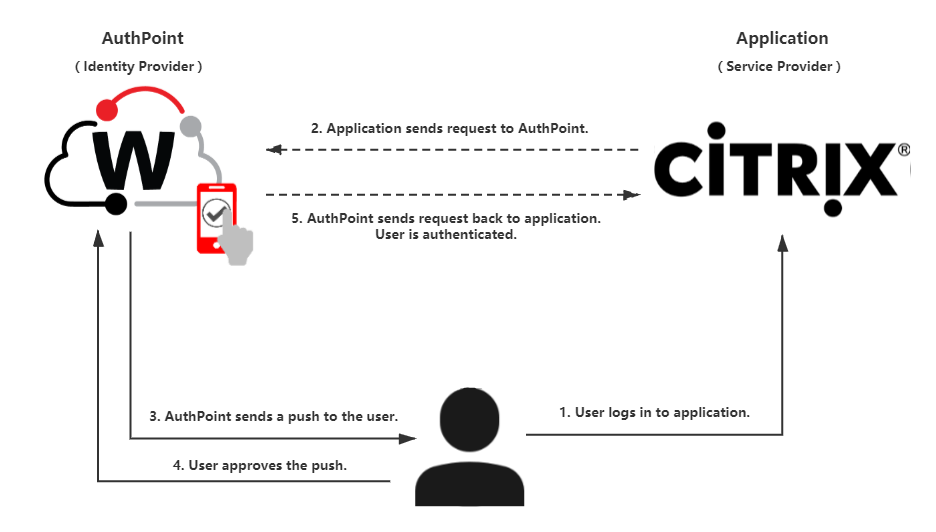
AuthPoint communicates with various cloud-based services and service providers for a MFA transaction. This diagram shows the data flow of an MFA transaction for Citrix Cloud.
Before You Begin
Before you begin these procedures, make sure that:
- The AuthPoint Mobile app is installed into your mobile device.
- A token is assigned to a user in AuthPoint.
- You have a Citrix Cloud account.
Configure MFA in Citrix Cloud
To configure MFA in Citrix Cloud:
- Log in to Citrix Cloud.
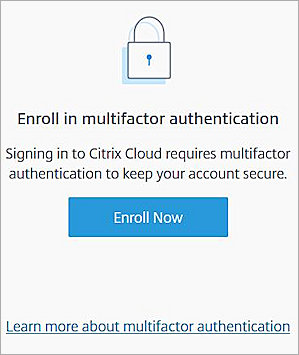
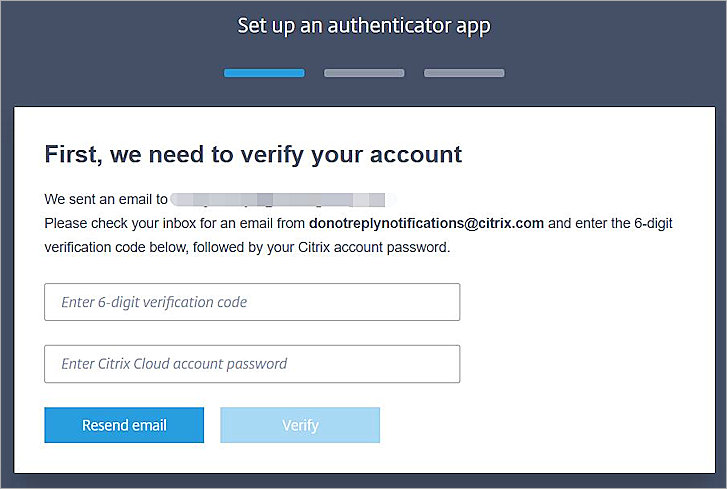
If you sign in to Citrix Cloud for the first time (or if MFA is not configured), you are prompted to enroll. - Click Enroll Now.
The Set Up an Authenticator App page opens. Citrix Cloud sends a verification email with a six digit verification code to your registered email address. - In the Enter 6-Digit Verification Code text box, type the verification code you received in an email.
- In the Enter Citrix Cloud Account Password text box, type a password for your Citrix Cloud account.
- Click Verify.
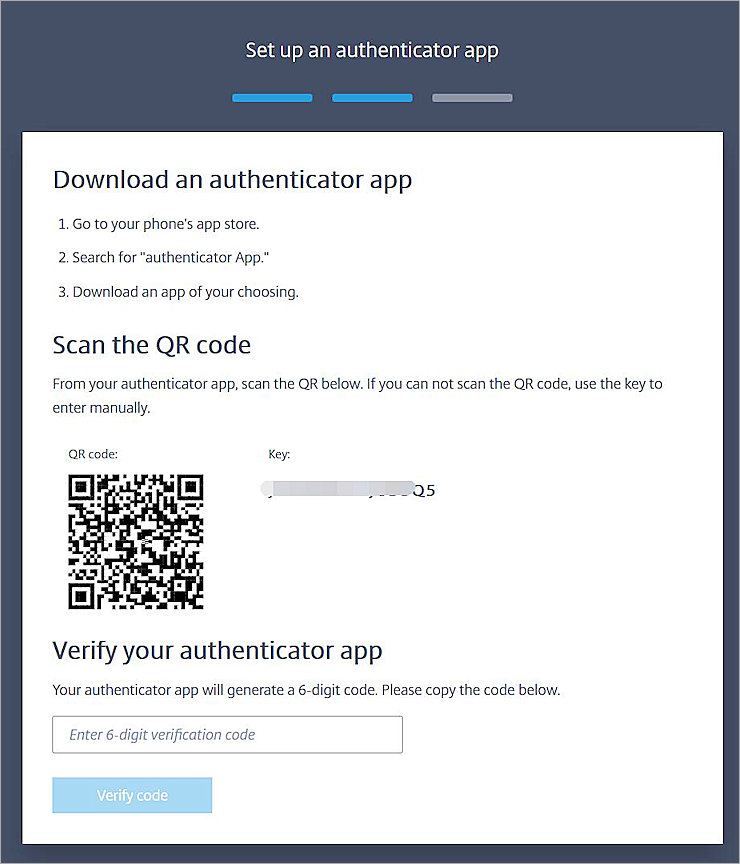
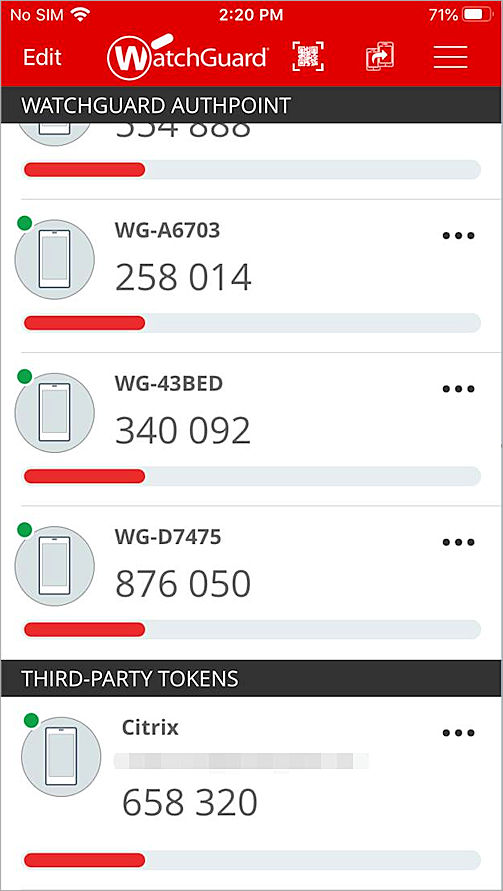
The Scan the QR Code page opens. - From the AuthPoint Mobile app, click the QR code icon and scan the QR code that you see on Citrix Cloud web UI.
On the AuthPoint Mobile app, in the Third-Party Tokens section, a Citrix token appears. - From your AuthPoint Mobile app, copy the 6-digit Citrix token code.
- In the Citrix Cloud web UI, in the Verify Your Authenticator App section, type the 6-digit code that you copied in the previous step.
- Click Verify Code.
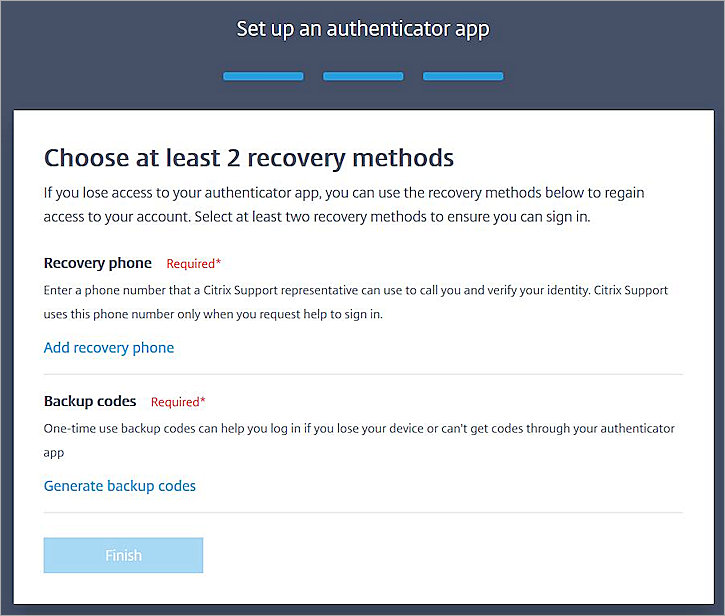
The Choose at Least 2 Recovery Methods page opens. - To add a recovery phone number, click Add Recovery Phone and enter your phone number.
- To add a backup code, click Generate Backup Codes.
- Click Finish.
Change MFA Authenticator to AuthPoint
If you already configured an authenticator with Citrix Cloud, you can change it to AuthPoint.
To change the MFA authenticator to AuthPoint:
- Log in to Citrix Cloud.
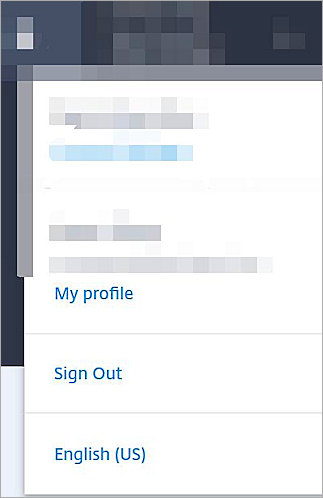
- From the navigation menu, click the administrator name.
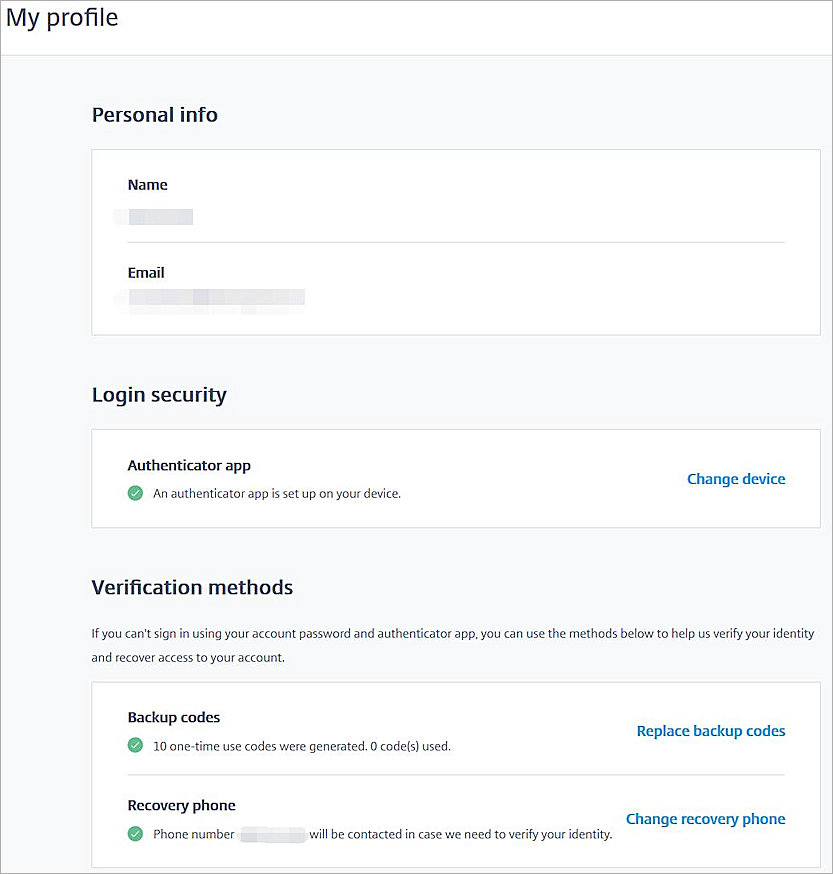
The administrator options appear. - Select My Profile.
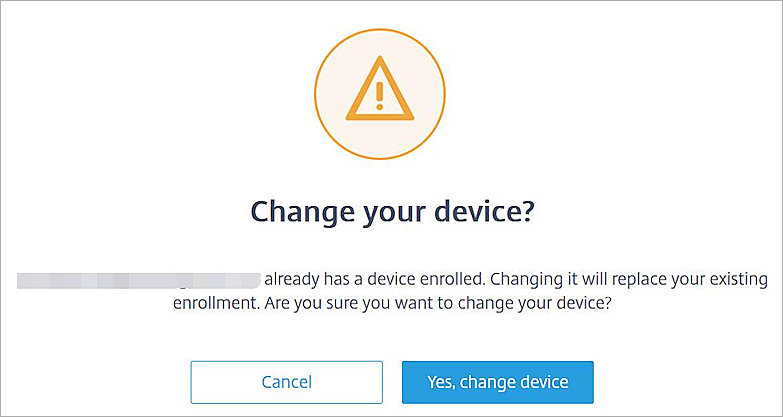
The My Profile page opens. - In the Login Security section, click Change Device.
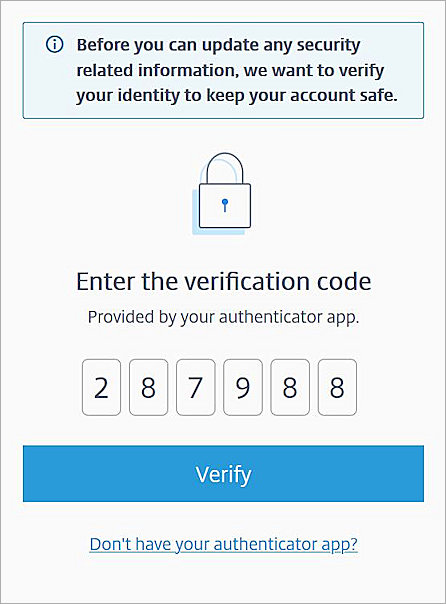
The Change Your Device confirmation dialog box opens. - Click Yes, Change Device.
The Enter the Verification Code page opens. - Enter the verification code from your existing authenticator, then click Verify.
The Set Up a New Device With Your Authenticator App page opens. - From the AuthPoint Mobile app, click the QR code icon and scan the QR code.
On the AuthPoint Mobile app, in the Third-Party Tokens section, a Citrix token appears. - From your AuthPoint Mobile app, copy the 6-digit Citrix token code.
- On the Citrix Cloud web UI, in the Verify Your Authenticator App section, type the 6-digit code that you copied in the previous step.
- Click Verify Code.
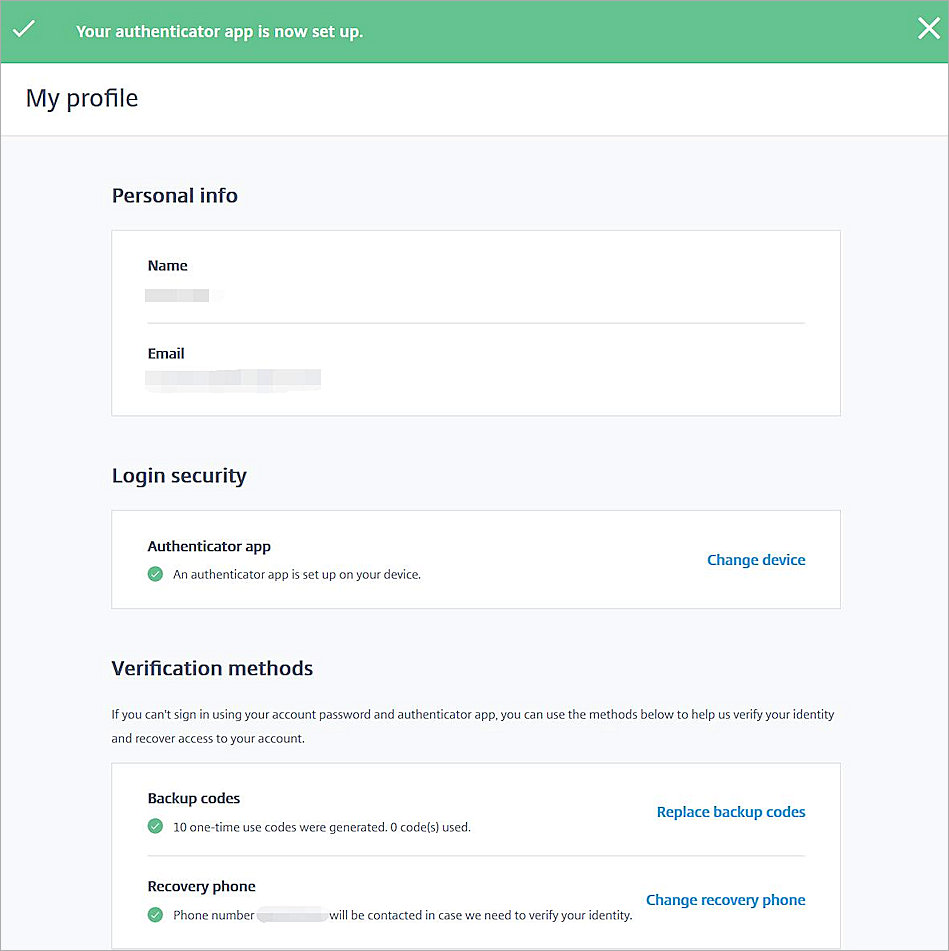
AuthPoint is configured as a MFA authenticator.

Test the Integration
To test the MFA integration of AuthPoint and the Citrix Cloud:
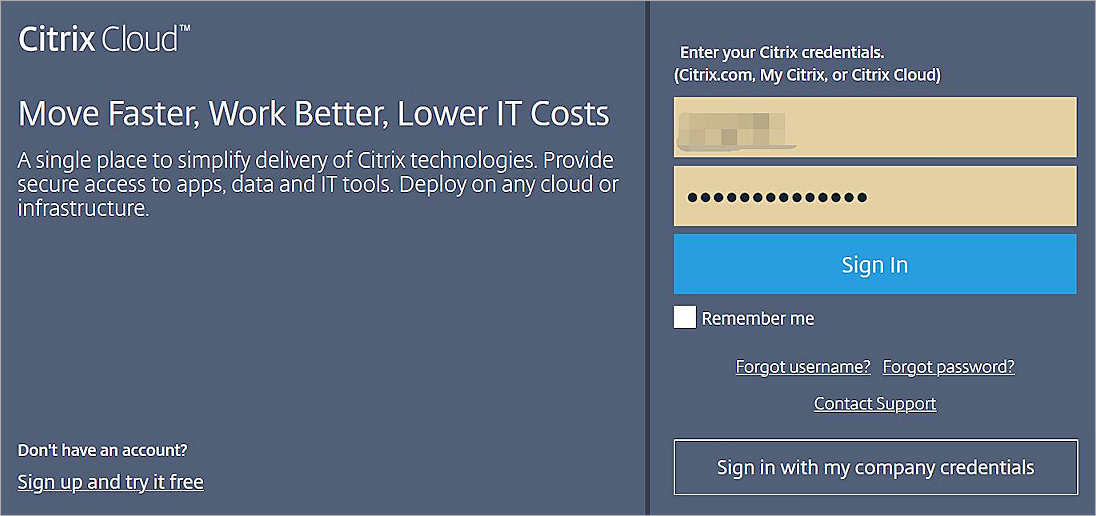
- Go to the Citrix Cloud login page.
- Type the user name and password.
- Click Sign In.
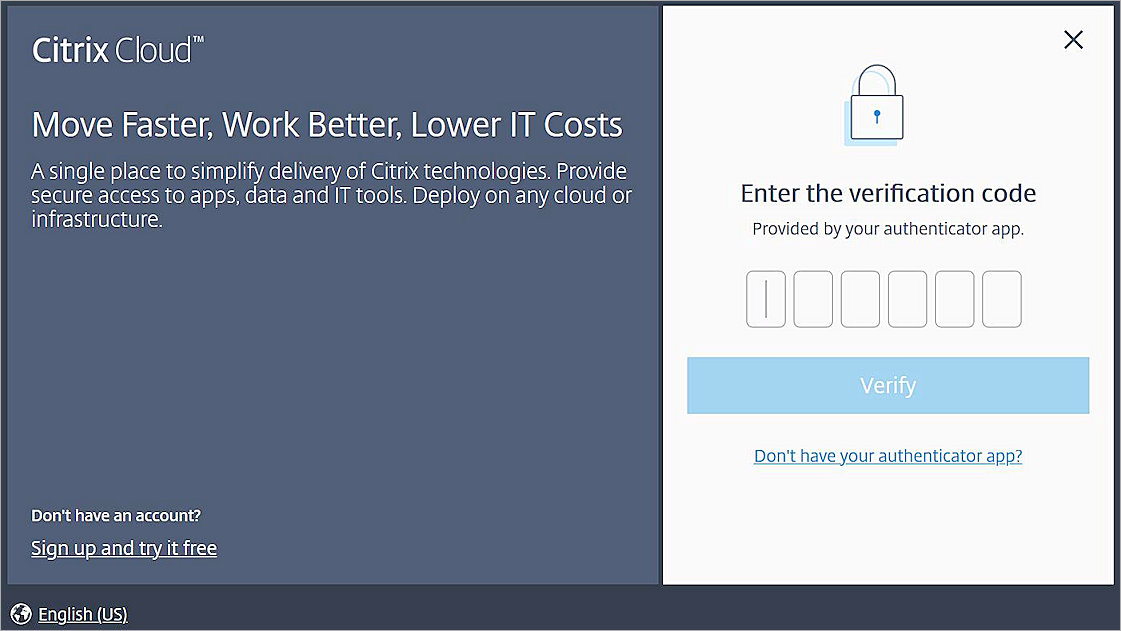
- Enter the 6-digit verification code from your AuthPoint Citrix token.
- Click Verify.
You are logged in to Citrix Cloud.